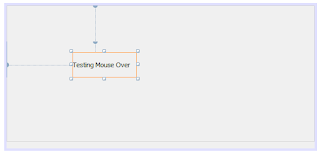
1. Create a JLable as above on your application using Netbeans IDE
2. Include the code snippet below to change the background colour of the JLabel.
2. Include the code snippet below to change the background colour of the JLabel.
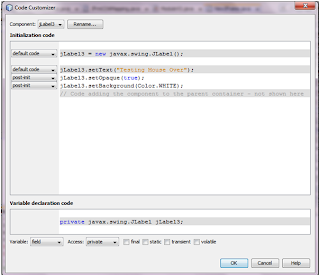
3. As you can see in the code, JLabel3.setOpaque(true) line is used because by default a JLable will have a “false” value for the Opaque which makes the background transparent.
4. Once the Opaque is set to true, change the background colour.
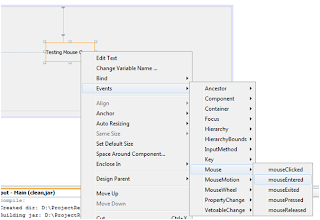
5. Select the mouse entered action, which provides an action when the cursor gets into the boundaries of the JLabel.
6. Include the code snippet below to change the colour of the JLabel during mouse over.

Results:
Before Mouse Over
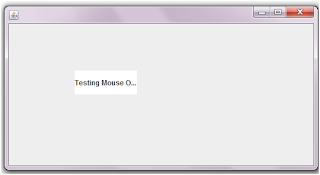
After Mouse Over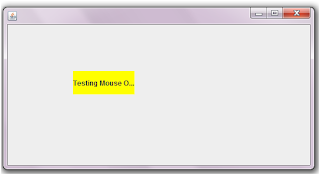
Author: Thiagu
Author: Thiagu

